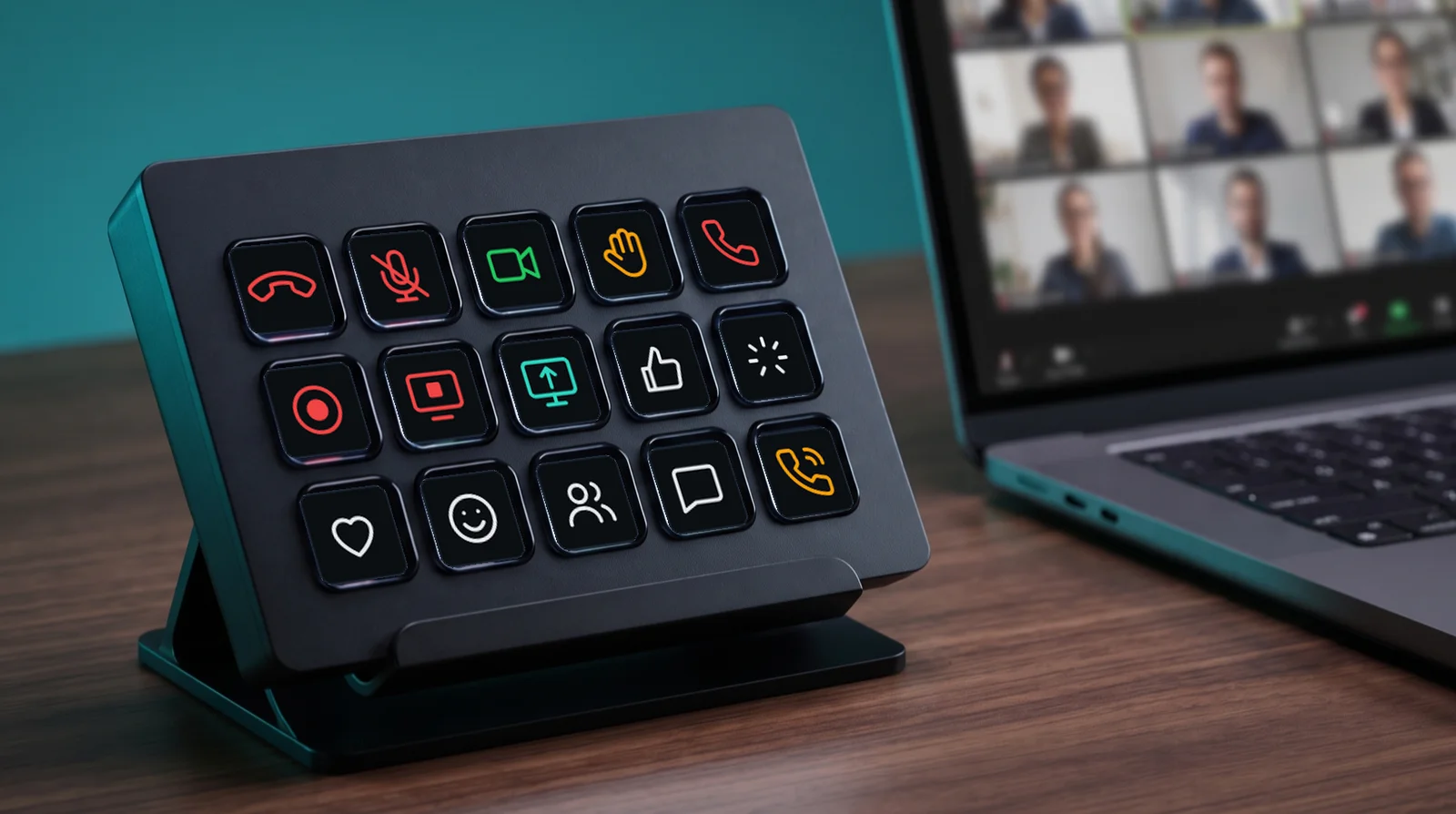
What the plugin is.
The plugin shows what your Teams call is doing on the keys you choose, and it sends your presses to the meeting.
It works through your Call State account. The plugin does not read Teams itself, so it needs no accessibility permission and no Call State app on the same computer.
Reading Teams and pressing its buttons is the job of the Call State app — or the browser extension. It runs on the computer with Teams, signed in with the same account. That can be another computer: the plugin works from any machine that runs the Stream Deck app.
Every press goes through the Call State service to the computer that is in the meeting. Nothing is stored on your keys: a key changes only when the Call State app reports the new value.
What you need.
- Stream Deck software 7.1 or newer, on macOS or Windows.
- A Stream Deck keypad, or a Stream Deck + if you also want the dial.
- A Call State account. The same one you use in the Call State app.
- The Call State app on the computer with Teams. The desktop app or the browser extension, running and signed in with the same account. It does not have to be the computer with the Stream Deck.
Install it.
- Download the installer. app.callstate.streamdeck.streamDeckPlugin
- Double-click the file. Stream Deck installs the plugin and adds a Call State category to the action list.
- Place your keys. Drag the actions you want onto the keys of your profile, and the dial onto a Stream Deck +.
- Sign in once. Open the property inspector of any Call State key and sign in with your Call State account (see Sign in).
Sign in.
While you are signed out, the property inspector of every Call State action offers the sign-in, so one sign-in covers every key of your profile. Once you are signed in, the account moves to the Status action: open its property inspector to see the account, the status and the device, or to sign out. The other actions then show only their own settings.
- Your password is used once and never stored. The plugin sends it to the Call State service and keeps the session it gets back.
- Only a refresh token is stored, in the Stream Deck plugin settings, so all keys share one session. The short-lived access token stays in memory and is renewed before it expires.
- On Free you sign in again every 24 hours. That daily sign-in is the only difference between Free and Paid; the plugin itself is free on both.
- Sign out from the property inspector of the Status action clears the stored session.
Changing your Call State password ends the stored session, so the plugin asks you to sign in again.
The actions.
Nine actions ship with the plugin. Add the ones you want; each one can appear several times with its own setting.
| Status | The whole picture on one key: signed out, connecting, Call State app offline, Teams closed, available, ringing, in a call or muted. | A press asks for a fresh status. |
|---|---|---|
| Indicator | One field you pick in the property inspector: mic, camera, hand, recording, sharing, chat, participants, ringing, Teams running or in meeting. | Nothing. It only shows. |
| Mic | Whether your microphone is open or muted. | Toggle, mute or unmute — your choice in the property inspector. |
| Camera | Whether your camera is on or off. | Toggle, switch on or switch off. |
| Hand | Whether your hand is raised. | Toggle, raise or lower. |
| Leave | Whether a meeting is running and can be left. | Leave the call. An optional hold to leave (press and hold) keeps a stray tap from ending a call. |
| Stop sharing | Whether you are sharing your screen. | Stop the running share. Starting a share has no key. |
| Reaction | The reaction you picked in the property inspector. | Send applause, laugh, like, love or surprised. |
| Dial (Stream Deck +) | The touch strip shows the status, the mic and the camera. | A press toggles the microphone. A touch toggles the camera. |
A key that cannot act right now is greyed out and sends nothing: outside a meeting, or when Teams does not offer that button. Call State never pretends a command worked, and a key only changes when the meeting really changed.
What stays read-only.
Five things are shown but never controlled — not by a key, not by the dial, not by the CLI and not by an automation. Call State has no control path for them:
| Recording | Recording is controlled by the meeting organizer in Teams, not by a button in your toolbar. |
|---|---|
| Starting a share | The share picker has no reliable press path. Stopping a share is a control (see above). |
| Chat pane | Opening and closing the chat pane is not a Call State command. The indicator shows whether the pane is visible, never unread messages. |
| Participant list | The product model has no control element for it. |
| Answering a call | Answering and declining are not Call State commands. While a call rings, the plugin shows the ringing state and nothing else. |
What the colours mean.
Status colours carry meaning, so they never stand for the brand. A key also carries a symbol, so the state survives a monochrome desk.
| Green | Available, and a microphone that is open. Teams is running with no meeting, or you are in a call and not muted. |
|---|---|
| Red | In a call, and muted. A running meeting, or a microphone that is closed. |
| Amber | A call is ringing. Nobody has joined it yet. |
| Grey | The action cannot run right now — no meeting, no Call State app online, or the button is not there. A press only shows a short alert. |
A microphone Call State cannot read counts as muted. That keeps the key on the safe side instead of promising an open mic.
When something looks off.
| The keys say the app is offline | No Call State app is reading Teams on your account. Start the Call State desktop app — or the browser extension — on the computer with Teams and sign it in with the same account. It can be another computer. |
|---|---|
| Most keys are grey outside a call | Commands need a meeting. Outside one the status key still shows Teams and the plugin still answers a press with a fresh status. |
| The keys ask you to sign in again | On Free the session ends after 24 hours. Sign in from the property inspector; Paid removes the daily sign-in. |
| Keys stay grey while you present | During an active screen share, Teams on Windows hides its meeting toolbar from other programs, so Call State reports leave and sharing as unavailable. A greyed-out key in that state is expected, not a fault. |
| A press changed nothing | Keys only follow the real meeting. If Teams kept the state, the key stays as it was; a refused press shows a short alert on the key instead of a new image. |
What the plugin stores.
One refresh token, in the Stream Deck plugin settings, so every key shares one session. Your password is never stored, and the access token lives in memory only.
The plugin reads nothing on your computer. It never looks at your Teams window, so it needs no accessibility permission. It sends presses to the Call State service and receives status from it, over the same encrypted connection as any secure website.
Status travels through the service in readable form, is relayed without a history, and reaches only clients signed in to your account. What leaves your computer explains the full picture.