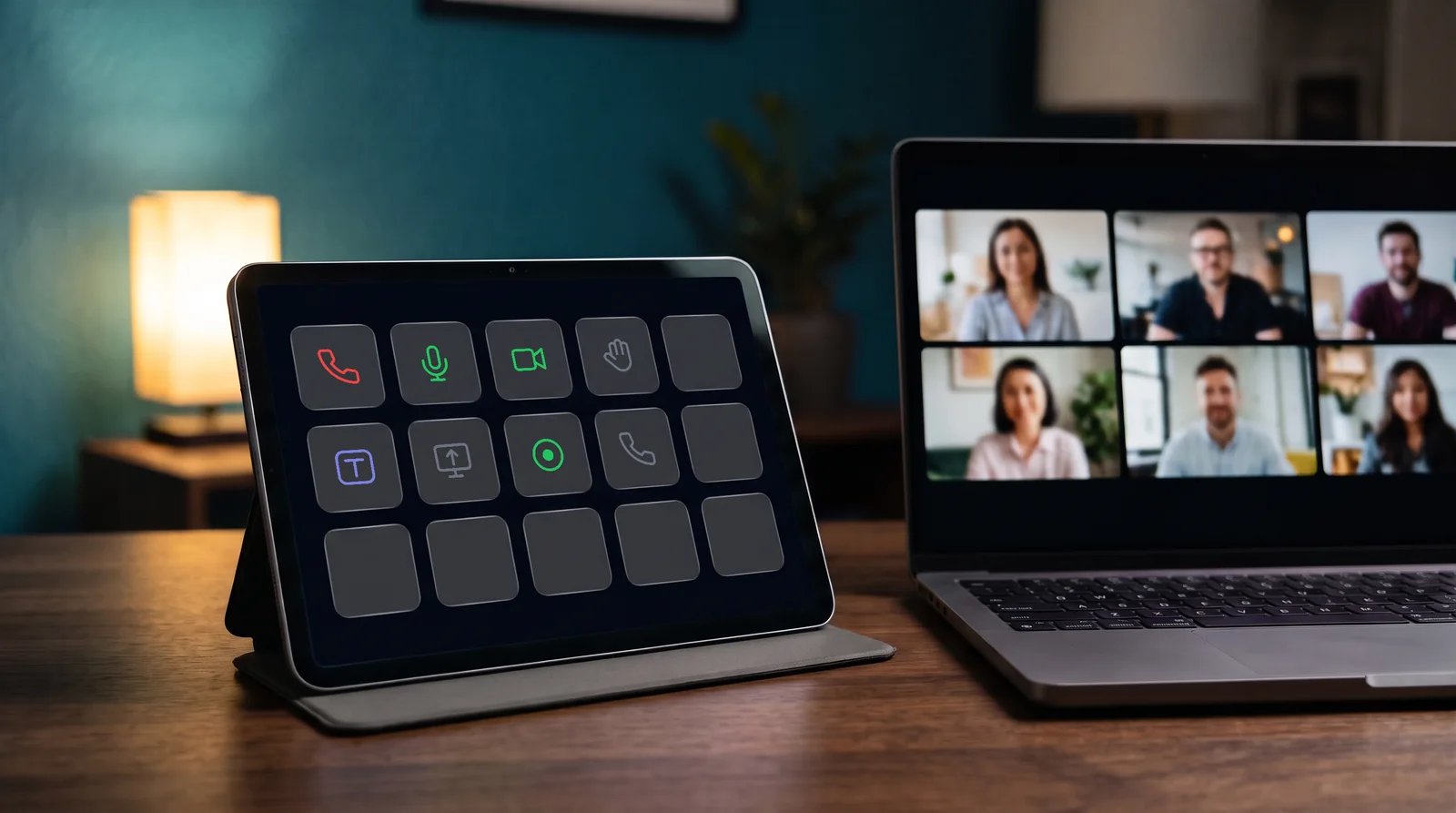
What the plugin is.
The plugin shows what your Teams call is doing on the Touch Portal buttons you choose, and it sends your presses to the meeting.
It works through your Call State account. It does not read Teams itself, so it needs no accessibility permission on the computer that runs Touch Portal.
Every press goes through the Call State service to the computer that is in the meeting. A button changes only when the Call State app reports the new value.
What you need.
- Touch Portal 4.0 or newer, on macOS or Windows.
- A Call State account. The same one you use in the Call State app.
- The Call State app on the computer with Teams. The desktop app or the browser extension, running and signed in with the same account.
- An internet connection the first time the plugin starts on a Mac. macOS checks the plugin's notarization online at its first launch.
Install it.
- Download the package for your computer. Version
- Import it into Touch Portal. Open the Touch Portal settings, go to Plug-ins, and import the downloaded file.
- Sign in. Open the settings page of the Call State plugin (see Sign in).
- Place your buttons. Add the Call State actions to your pages and choose the icons you want (see Icons).
Sign in.
The settings page of the plugin has two fields: your email and your password. Close the settings page and the plugin signs in with them.
- Your password is used once and never stored. The plugin clears the field after a successful sign-in.
- Only a refresh token is stored, in a file next to the plugin, readable only by your user account. The short-lived access token stays in memory.
- On Free you sign in again every 24 hours. Clear the email field to sign out, then enter your email and password again. Paid removes the daily sign-in.
- Sign out by clearing the email field on the settings page.
Changing your Call State password ends the stored session, so the plugin asks you to enter your password again.
The actions.
| Microphone | Set the microphone to toggle, on or off. |
|---|---|
| Camera | Set the camera to toggle, on or off. |
| Hand | Toggle, raise (Up) or lower (Down) your hand. |
| Leave meeting | Leave the running call. |
| Stop sharing | Stop the running screen share. |
| Reaction | Send applause, laugh, like, love or surprised. Pick the reaction in the action settings. |
A command that cannot run right now is refused. Call State never pretends a command worked, and a button only changes when the meeting really changed.
The states.
Fifteen states show the status on your buttons and in your pages: connected, signed in, microphone, camera, hand, meeting active, recording, sharing, and what you can control. Each one is a text value you can show on a button.
Read-only: recording and sharing are shown as states. The plugin cannot start a recording or a share.
A microphone Call State cannot read counts as muted, which keeps the button on the safe side.
Icons.
The plugin ships the Call State button icons in its own folder, assets/icons, inside the plugin folder of Touch Portal. In the button editor, pick an image from that folder. Each action has its own subfolder with the icon of every state.
Updates.
The plugin checks for a new version when it starts and then once a day. When one is available, Touch Portal shows a notification with Download and Read more. Install the new package the same way as the first one.
When something looks off.
| Connection: Offline | The service cannot be reached. The plugin keeps retrying; check your internet connection. |
|---|---|
| Connection: No tray | Your account is connected, but no Call State app or browser extension is online. Start it on the computer with Teams. |
| Notification: wrong email or password | Check the two fields on the plugin settings page. |
The plugin writes a log file, logs/plugin.log, next to its binary. Send it to support if a problem persists. It never contains your password or tokens.
What the plugin stores.
One refresh token, in a file next to the plugin, so the session survives a restart. Your password is never stored, and the access token lives in memory only.
The plugin reads nothing on your computer and never looks at your Teams window. It sends presses to the Call State service and receives status from it.